Components Example
MDX
Code
代码块支持的语言高亮以及语言关键字
请在fumadocs查看支持的语言和关键字
点击第一个下拉框就可以看见支持的语言和关键字
注意一些语言可能与你想想的不同
例如Javascript应该写为js
复制(copy)
代码块默认支持copy,你不需要,也不应该在语言关键字后面加copy
```js
const x = 1
function name(params) {
  x ++
}
```
const x = 1
function name(params) {
x ++
}Math
```math
c = \pm\sqrt{a^2 + b^2}
```Long equations example
Mermaid
```mermaid
graph TD;
subgraph AA [Consumers]
A[Mobile app];
B[Web app];
C[Node.js client];
end
subgraph BB [Services]
E[REST API];
F[GraphQL API];
G[SOAP API];
end
Z[GraphQL API];
A --> Z;
B --> Z;
C --> Z;
Z --> E;
Z --> F;
Z --> G;
```
组件
Accordion
import React from 'react';
import { Accordion, Accordions } from 'fumadocs-ui/components/accordion';


<Accordions type="single">
  <Accordion title="My Title">My Content</Accordion>
</Accordions>;了解更多
用于收纳不影响主线操作的原理、实现细节和兼容性说明。默认保持收起,不要把必须执行的步骤或关键风险放入其中。
import { LearnMore } from 'components-docs/learn-more/learn-more.tsx';

<LearnMore title="了解更多:为什么需要选择推理后端?">
推理后端决定由哪套程序加载并运行模型。普通用户使用 Runner 预设即可。
</LearnMore>
了解更多:为什么需要选择推理后端?
推理后端决定由哪套程序加载并运行模型。普通用户使用 Runner 预设即可。
Files
import { File, Folder, Files } from 'fumadocs-ui/components/files';

<Files>
  <Folder name="app" defaultOpen>
    <File name="layout.tsx" />
    <File name="page.tsx" />
    <File name="global.css" />
  </Folder>
  <Folder name="components">
    <File name="button.tsx" />
    <File name="tabs.tsx" />
    <File name="dialog.tsx" />
  </Folder>
  <File name="package.json" />
</Files>Image Zoom
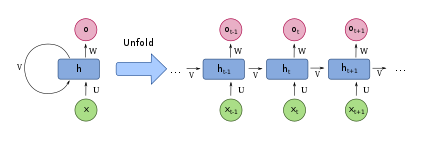
图片放大已全局引用,正常使用图片md即可
Steps
import { Step, Steps } from 'fumadocs-ui/components/steps';

<Steps>
<Step>

### Read the docs

</Step>

<Step>

### Make sure you had read the docs

</Step>
</Steps>Tabs
import { Tab, Tabs } from 'fumadocs-ui/components/tabs';

<Tabs items={['Javascript', 'Rust']}>
  <Tab value="Javascript">Javascript is weird</Tab>
  <Tab value="Rust">Rust is fast</Tab>
</Tabs>高级组件
卡片
import { CardContainer } from '../../components-docs/card/card-container.tsx'
import { Card } from '../../components-docs/card/card.tsx'
import { PanelBottomDashed } from "lucide-react";

<CardContainer>
<Card image="color-1.png" icon={PanelBottomDashed} iconColor='text-red-500' title="关于 RWKV" description="了解 RWKV 的主要版本、模型和论文发布情况" link="/docs/RWKV-Wiki/Introduction" />
<Card image="color-2.png" icon={PanelBottomDashed} iconColor='text-blue-500' title="关于 RWKV" description="了解 RWKV 的主要版本、模型和论文发布情况" link="/docs/RWKV-Wiki/Introduction" />
<Card image="color-3.png" icon={PanelBottomDashed} iconColor='text-green-500' title="关于 RWKV" description="了解 RWKV 的主要版本、模型和论文发布情况" link="/docs/RWKV-Wiki/Introduction" />
<Card image="color-4.png" icon={PanelBottomDashed} iconColor='text-yellow-500' title="关于 RWKV" description="了解 RWKV 的主要版本、模型和论文发布情况 的主要版本、模型和论文发布情况的主要版本、模型和论文发布情况" link="/docs/RWKV-Wiki/Introduction" />
</CardContainer>



提示框
import { CallOut } from '../../components-docs/call-out/call-out.tsx'

<CallOut type="info" >
this is a info callout

support markdown
</CallOut>
<CallOut type="warning" >
this is a warning callout

同样**支持 markdown**

字体为 15px
</CallOut>
<CallOut type="alert" >
this is a alert callout
</CallOut>
<CallOut type="error" >
this is a error callout
</CallOut>
this is a tips callout
support markdown
this is a info callout
support markdown
this is a warning callout
同样支持 markdown
字体为 15px
this is a alert callout
this is a error callout
内容嵌套
import { CallOut } from '../../components-docs/call-out/call-out.tsx'
<CallOut type="info" >
**微调是什么?**
[this is a info callout](#)(Dimension-Sharding Adaptation)是一种新颖的参数高效微调方法(PEFT - Parameter-Efhcient Fine-Tuning),旨在进一步降低可训练参数数量,同时加速收敛。

</CallOut>微调是什么?
this is a info callout(Dimension-Sharding Adaptation)是一种新颖的参数高效微调方法(PEFT - Parameter-Efhcient Fine-Tuning),旨在进一步降低可训练参数数量,同时加速收敛。
Tabs
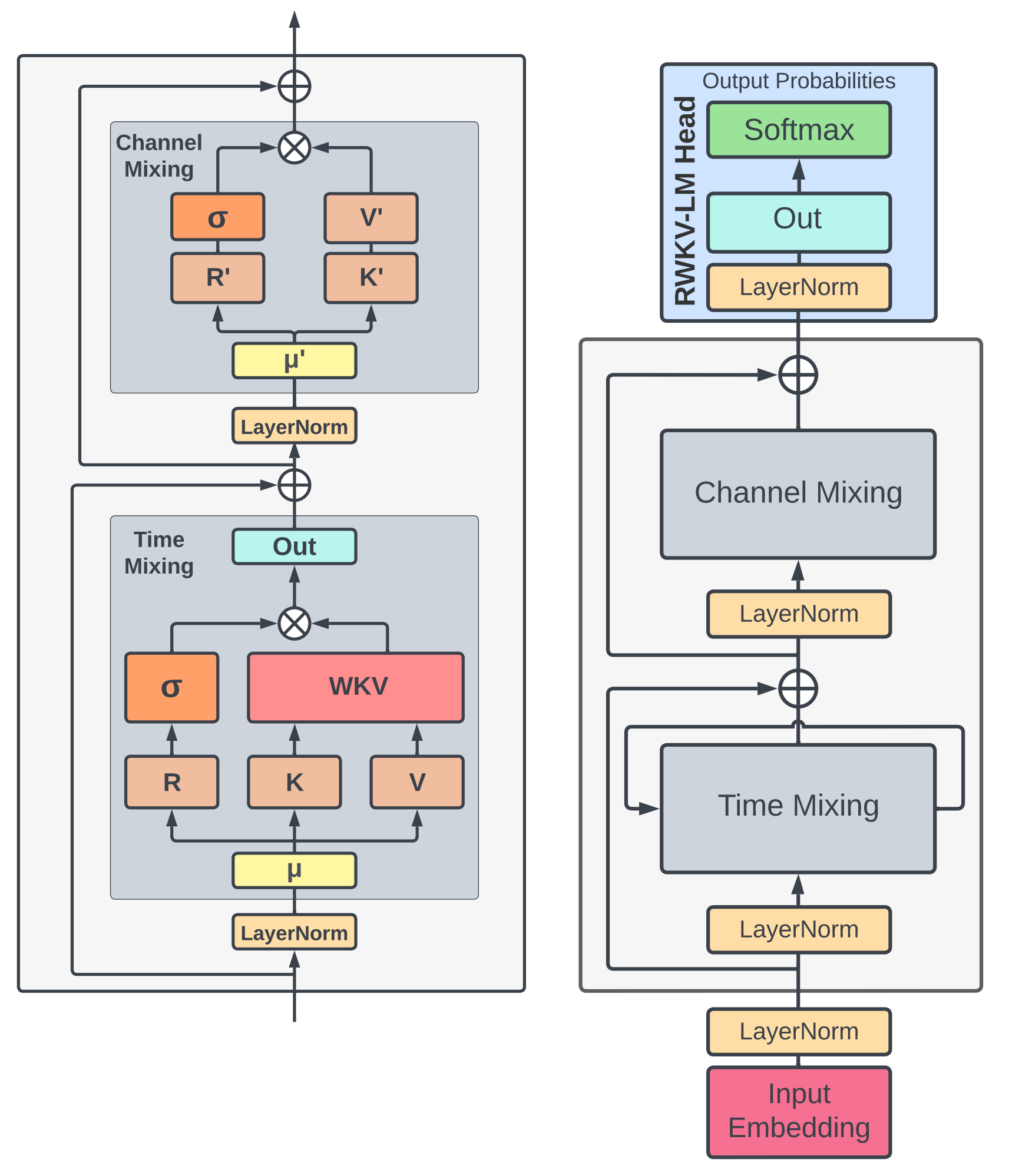
高级tabs,你可以在 TabsContentCN 中嵌套任何组件,例如 CallOut 和 image:
import { TabsCN, TabsContentCN, TabsListCN, TabsTriggerCN } from "../../components-docs/tabs/tabs.tsx"
<TabsCN defaultValue="rwkv-4" className="">
<TabsListCN>
<TabsTriggerCN value="rwkv-4">RWKV-4</TabsTriggerCN>
<TabsTriggerCN value="rwkv-3">RWKV-3</TabsTriggerCN>
</TabsListCN>
<TabsContentCN value="rwkv-4" >
### RWKV-4
- fast
- efficient
- scalable
</TabsContentCN>
<TabsContentCN value="rwkv-3" >
You can import any thing inside this `TabsContentCN`
like `callout`:
<CallOut type="info" >
this is a info callout
</CallOut>
or images:

</TabsContentCN>
</TabsCN>- fast
- efficient
- scalable
Link Card
import { LinkCard, LinkCardContainer } from '../../components-docs/link-card/link-card.tsx'

<LinkCardContainer>
  <LinkCard content="RWKV-4 模型 很长 很长的标题 很长 很长的 标题" link="/docs/RWKV-Wiki/Introduction" />
  <LinkCard content="RWKV-4 模型" link="/docs/RWKV-Wiki/Introduction" />
  <LinkCard content="RWKV-4 模型" link="/docs/RWKV-Wiki/Introduction" />
  <LinkCard content="RWKV-4 模型" link="/docs/RWKV-Wiki/Introduction" />
</LinkCardContainer>
终端文档组件
TerminalWindow 是独立的全宽模拟终端,用于替代命令行截图。操作说明仍使用普通 MDX 编写;命令和输出通过 commands 维护。
import { TerminalWindow } from 'components-docs/terminal-docs/terminal-docs.tsx'

## 启动推理服务

安装依赖后运行服务。终端用于展示命令与模拟输出,不提供整段复制按钮。

<TerminalWindow
  title="PowerShell"
  shell="powershell"
  commands={[
    { command: 'pip install rwkv' },
    {
      command: 'python app.py --model-path ./models/rwkv.pth --port 8000',
      output: 'INFO  Server listening on http://127.0.0.1:8000',
    },
  ]}
/>
安装依赖后运行服务。终端用于展示命令与模拟输出,不提供整段复制按钮。
- 支持多条命令和逐条输出
- 全宽展示,较长命令无需挤在半栏中
- 自动适配亮色、暗色和移动端
shell可设为bash、zsh、fish、powershell或cmd,用于选择提示符、强调色和 Shiki 语法高亮;默认值auto会根据title推断,无法识别时使用 Bash- 单条命令可用
language覆盖终端默认的高亮语言,用prompt覆盖默认提示符
pip install rwkvpython app.py --model-path ./models/rwkv.pth --port 8000API 参考组件
ApiReference 是独立的双栏 API 组件:左侧展示端点说明与可展开 schema,右侧是轻量代码面板,支持切换请求、响应和 cURL 并复制。它不使用模拟终端组件。
kind="request"使用“必填 / 可选”,kind="response"使用“始终返回 / 可能返回”,避免把响应 schema 写成需要调用者填写的表单。statusCode与contentType分别描述 HTTP 状态和媒体类型;流式响应可使用text/event-stream。- 字段还支持
location、format、enumValues、example、nullable和deprecated,用于表达参数位置与 schema 约束。 - 带子字段的
ApiField默认展开;可设置defaultOpen={false}默认收起,或设置collapsible={false}始终展示。
import { ApiReference, ApiSchemaSection, ApiField } from 'components-docs/api-reference/api-reference.tsx'

<ApiReference
  method="POST"
  path="/v1/chat/completions"
  title="创建聊天补全"
  showTitle
  description="向当前加载的 RWKV 模型发送一组消息。"
  examples={[
    { label: 'cURL', language: 'bash', code: 'curl ...' },
    { label: '请求主体', language: 'json', code: '{ ... }' },
    { label: '响应', language: 'json', code: '{ ... }' },
  ]}
>
  <ApiSchemaSection title="请求主体" kind="request" contentType="application/json">
    <ApiField name="messages" type="array<object>" required description="对话消息列表。">
      <ApiField name="role" type="string" required description="消息角色。" />
      <ApiField name="content" type="string" required description="消息内容。" />
    </ApiField>
  </ApiSchemaSection>
  <ApiSchemaSection title="响应主体" kind="response" statusCode="200" contentType="application/json">
    <ApiField name="choices" type="array<object>" required description="生成结果。" />
  </ApiSchemaSection>
</ApiReference>/v1/chat/completions创建聊天补全
请求主体application/json发送给聊天补全端点的 JSON 对象。
messagesarray<object>必填收起子字段
rolestring必填contentstring必填temperaturenumber可选1top_pnumber可选0.3streamboolean可选false响应主体200application/json非流式请求成功时返回的聊天补全对象。
objectstring始终返回choicesarray<object>始终返回收起子字段
indexinteger始终返回messageobject始终返回finish_reasonstring始终返回 粤公网安备44030002010697号